In this blog article, we will see how we can deploy package in Dynamics 365 Operations. This Package can be any latest update, hotfix or deployment package you have created.
Prerequisites:
LCS login
VM Instance
Steps:
1. Download, Extract and Unblock Package
2. Update topology configuration data
3. Generate a runbook from the topology
4. Execute runbook
Download, Extract and Unblock Package
a. Login to LCS and download the Zip file of Deployable Package.
b. After downloading, go to downloaded Zip file properties and select unblock.
c. Extract the Zip file to a non–user folder.
Update topology configuration data
a. Go to extracted folder and open the file “DefaultTopologyData.xml”
b. Populate the file with VM name.
i. Go to This PC -> Properties. Find the name of the machine.
ii. Update the VM name with the machine name in the file.
c. Populate the file with installed components
i. Open a command prompt as an administrator.
ii. Run the command from extracted folder path to see a list of all installed components on the computer.
iii. Update the file with a list of components.
3. Generate a runbook from the topology
a. Run the command to generate a runbook.
AXUpdateInstaller.exe generate -runbookid=[runbookID] -topologyfile=[topologyFile] -servicemodelfile=[serviceModelFile] -runbookfile=[runbookFile]
Example:
b. Runbook will contain instructions in sequential steps to deploy the package.
4. Execute Runbook
a. Import the runbook.
AXUpdateInstaller.exe import -runbookfile=[runbookFile]
Example:
b. Verify the runbook.
c. Execute the runbook.
AXUpdateInstaller.exe execute -runbookid=[runbookID]
Example:
d. Export the runbook.
Export the runbook for future reference, you can use it to refer the steps, time to execute each step and logs for each step.
UpdateInstaller.exe export -runbookid=[runbookID] -runbookfile=[runbookFile]
Example:
17 November 2017

how to restore the *.bacpac databse in MS SQL Server - import the bacpak file in MS SQL Server
Import the database
When you import the database, we recommend that you:
•Retain a copy of the existing AxDB database, to allow you to revert to it later if needed.
•Import the new database with a new name, for example AxDB_fromProd.
Copy the *.bacpac file to the local machine from which you will import to ensure the best performance. Open a command prompt as Administrator and run the following commands.
Syntax:
SqlPackage.exe /a:import /sf:D:\Exportedbacpac\my.bacpac /tsn:localhost /tdn: /p:CommandTimeout=1200
Example:
SqlPackage.exe /a:import /sf:J:\Test_DB\Test110617.bacpac /tsn:D365Test /tdn:AxDBTest /p:CommandTimeout=1200
The following list provides an explanation of the parameters:
•tsn (target server name): The name of the SQL Server that you will import to.
•tdn (target database name): The name of the database that you will import to. The database should not already exist.
•sf (source file): The path and file name to import from.
Note
During import, the user name and password are not required because SQL Server will default to Windows authentication for the currently logged on user.
When you import the database, we recommend that you:
•Retain a copy of the existing AxDB database, to allow you to revert to it later if needed.
•Import the new database with a new name, for example AxDB_fromProd.
Copy the *.bacpac file to the local machine from which you will import to ensure the best performance. Open a command prompt as Administrator and run the following commands.
Syntax:
SqlPackage.exe /a:import /sf:D:\Exportedbacpac\my.bacpac /tsn:localhost /tdn:
Example:
SqlPackage.exe /a:import /sf:J:\Test_DB\Test110617.bacpac /tsn:D365Test /tdn:AxDBTest /p:CommandTimeout=1200
The following list provides an explanation of the parameters:
•tsn (target server name): The name of the SQL Server that you will import to.
•tdn (target database name): The name of the database that you will import to. The database should not already exist.
•sf (source file): The path and file name to import from.
Note
During import, the user name and password are not required because SQL Server will default to Windows authentication for the currently logged on user.
17 October 2017
Dynamics AX 365 Import or install / Export / delete model file / D365 operations
Example for Model import and export in D365 Operations
Import:
c:\AosService\PackagesLocalDirectory\Bin>ModelUtil.exe -import -metadatastorepath=c:\AosService\PackagesLocalDirectory -file="d:\ModelTest.axmodel"
Export:
c:\AosService\PackagesLocalDirectory\Bin>ModelUtil.exe -export -metadatastorepath=c:\AosService\PackagesLocalDirectory -modelname="FleetManagement" -outputpath=c:\Models
Delete model:
c:\AosService\PackagesLocalDirectory\Bin>ModelUtil.exe -delete -metadatastorepath=c:\AosService\PackagesLocalDirectory -modelname="FleetManagement"
Replace:
c:\AosService\PackagesLocalDirectory\Bin>ModelUtil.exe -replace-metadatastorepath=c:\AosService\PackagesLocalDirectory -modelname="FleetManagement" -outputpath=c:\Models
Import:
c:\AosService\PackagesLocalDirectory\Bin>ModelUtil.exe -import -metadatastorepath=c:\AosService\PackagesLocalDirectory -file="d:\ModelTest.axmodel"
Export:
c:\AosService\PackagesLocalDirectory\Bin>ModelUtil.exe -export -metadatastorepath=c:\AosService\PackagesLocalDirectory -modelname="FleetManagement" -outputpath=c:\Models
Delete model:
c:\AosService\PackagesLocalDirectory\Bin>ModelUtil.exe -delete -metadatastorepath=c:\AosService\PackagesLocalDirectory -modelname="FleetManagement"
Replace:
c:\AosService\PackagesLocalDirectory\Bin>ModelUtil.exe -replace-metadatastorepath=c:\AosService\PackagesLocalDirectory -modelname="FleetManagement" -outputpath=c:\Models
29 September 2017
Dynamics 365 operations default elements / Object XML files storage place
C:\AOSService\PackagesLocalDirectory\ApplicationPlatform\ApplicationPlatform
C:\AOSService\PackagesLocalDirectory\ApplicationFoundation\ApplicationFoundation\
28 September 2017
AX 2012 lookup filter using query
public void lookup()
{
QueryBuildDataSource qbds;
Query query = new Query();
LanguageId language;
SysTableLookup sysTableLookup = SysTableLookup::newParameters(tableNum(EcoResProductTranslation), this);
sysTableLookup.addLookupfield(fieldNum(EcoResProductTranslation, Name));
qbds = query.addDataSource(tableNum(EcoResProductTranslation));
language = CompanyInfo::find().LanguageId;
qbds.addRange(fieldNum(EcoResProductTranslation, LanguageId)).value(queryValue(language));
qbds = qbds.addDataSource(tableNum(EcoResProduct));
qbds.joinMode(JoinMode::InnerJoin);
qbds.relations(True);
sysTableLookup.parmQuery(query);
sysTableLookup.performFormLookup();
}
{
QueryBuildDataSource qbds;
Query query = new Query();
LanguageId language;
SysTableLookup sysTableLookup = SysTableLookup::newParameters(tableNum(EcoResProductTranslation), this);
sysTableLookup.addLookupfield(fieldNum(EcoResProductTranslation, Name));
qbds = query.addDataSource(tableNum(EcoResProductTranslation));
language = CompanyInfo::find().LanguageId;
qbds.addRange(fieldNum(EcoResProductTranslation, LanguageId)).value(queryValue(language));
qbds = qbds.addDataSource(tableNum(EcoResProduct));
qbds.joinMode(JoinMode::InnerJoin);
qbds.relations(True);
sysTableLookup.parmQuery(query);
sysTableLookup.performFormLookup();
}
28 August 2017
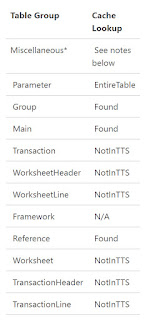
Dynamics AX caching / Cache lookup in AX 2012
Cache Lookup In AX 2012
Single record caching
Found
Found caching will assign for the main table, to find the unique record, like CustTable.
Found and Empty
Similar to Found, when there is empty record can be cache, will be used for Group Tables like custGroup.
NotInTTS
Will be used for Transaction tables like CustTrans, because to avoid to cache the NotInTTS records.
Set-based caching
EntairTable
This will be used mainly for Parameter table as it contains the single record to cache full table data.
Record Caching
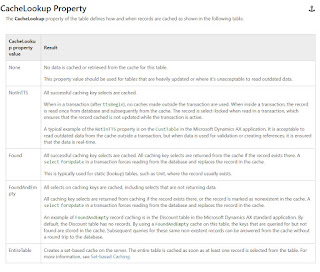
Microsoft Dynamics AX database record caching is a performance-enhancing feature that helps avoid database access when it's not strictly necessary. Retrieving database records from memory instead of the database significantly speeds up data access. Caching can reduce the performance penalty for repetitively accessing the same database records.
Types of Caching
Caching is transparent to the application; however, it's important to know how caching works to optimize its performance in Microsoft Dynamics AX. Following are the types of caching:
Single-record
Set-based
Single-record caching has the following characteristics:
Defined at design time
Moves records to the cache based on the table's CacheLookup property and the type of SELECT statement that is used to retrieve the record
For more information about record caching, see Single-record Caching.
Set-based caching has the following characteristics:
Defined either at design time or in X++ code
Moves sets of records to the cache
Implemented either through the table's CacheLookup property or in code by using the RecordViewCache class
Set-based Caching [AX 2012]
EntireTable Cache
When you set a table's CacheLookup property to EntireTable, all the records in the table are placed in the cache after the first select. This type of caching follows the rules of single record caching. This means that the SELECT statement WHERE clause must include equality tests on all fields of the unique index that is defined in the table's PrimaryIndex property.
The EntireTable cache is located on the server and is shared by all connections to the Application Object Server (AOS). If a select is made on the client tier to a table that is EntireTable cached, it first looks in its own cache and then searches the server-side EntireTable cache. An EntireTable cache is created for each table for a given company. If you have two selects on the same table for different companies the entire table is cached twice.
Single-record Caching [AX 2012]
Record caching is enabled for a table when all the following statements are true:
The CacheLookup property on the table is enabled by setting it to one of the following values:
NotInTTS, Found, FoundAndEmpty.
The record buffer disableCache method has not been called with a parameter of true.
Records are cached for all unique indexes when all the following criteria are met:
The table is cached by having its CacheLookup property set to NotInTTS, Found, or FoundAndEmpty.
The select statement that selects the records uses an equal operator (==) on the caching key. The fields in the where clause of the select statement match the fields in any unique index.
Single record caching
Found
Found caching will assign for the main table, to find the unique record, like CustTable.
Found and Empty
Similar to Found, when there is empty record can be cache, will be used for Group Tables like custGroup.
NotInTTS
Will be used for Transaction tables like CustTrans, because to avoid to cache the NotInTTS records.
Set-based caching
EntairTable
This will be used mainly for Parameter table as it contains the single record to cache full table data.
Record Caching
Microsoft Dynamics AX database record caching is a performance-enhancing feature that helps avoid database access when it's not strictly necessary. Retrieving database records from memory instead of the database significantly speeds up data access. Caching can reduce the performance penalty for repetitively accessing the same database records.
Types of Caching
Caching is transparent to the application; however, it's important to know how caching works to optimize its performance in Microsoft Dynamics AX. Following are the types of caching:
Single-record
Set-based
Single-record caching has the following characteristics:
Defined at design time
Moves records to the cache based on the table's CacheLookup property and the type of SELECT statement that is used to retrieve the record
For more information about record caching, see Single-record Caching.
Set-based caching has the following characteristics:
Defined either at design time or in X++ code
Moves sets of records to the cache
Implemented either through the table's CacheLookup property or in code by using the RecordViewCache class
Set-based Caching [AX 2012]
EntireTable Cache
When you set a table's CacheLookup property to EntireTable, all the records in the table are placed in the cache after the first select. This type of caching follows the rules of single record caching. This means that the SELECT statement WHERE clause must include equality tests on all fields of the unique index that is defined in the table's PrimaryIndex property.
The EntireTable cache is located on the server and is shared by all connections to the Application Object Server (AOS). If a select is made on the client tier to a table that is EntireTable cached, it first looks in its own cache and then searches the server-side EntireTable cache. An EntireTable cache is created for each table for a given company. If you have two selects on the same table for different companies the entire table is cached twice.
Single-record Caching [AX 2012]
Record caching is enabled for a table when all the following statements are true:
The CacheLookup property on the table is enabled by setting it to one of the following values:
NotInTTS, Found, FoundAndEmpty.
The record buffer disableCache method has not been called with a parameter of true.
Records are cached for all unique indexes when all the following criteria are met:
The table is cached by having its CacheLookup property set to NotInTTS, Found, or FoundAndEmpty.
The select statement that selects the records uses an equal operator (==) on the caching key. The fields in the where clause of the select statement match the fields in any unique index.


15 August 2017
Event handlers for table methods in Dynamics 365 / AX 7
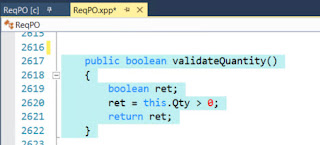
In the below code, You can see a class which is included with one method for post event handling for ReqPO->ValidateQuantity() method.
According to the D365 concept, have to use the static method for event handler but, in this case, need to return value.
Using the below function we can return value even in a static method.
Below method is to execute after ReqPO->ValidateQuantity() method as a post event method.

Ref: Method for the above event method.
According to the D365 concept, have to use the static method for event handler but, in this case, need to return value.
Using the below function we can return value even in a static method.
Below method is to execute after ReqPO->ValidateQuantity() method as a post event method.

Ref: Method for the above event method.

Subscribe to:
Posts (Atom)